
Citrix NetScaler ‘Failed to upload file’
1 min read
 At one of my projects I was assigned to configure two NetScalers in HA pair. Because of a delay in procurement the licenses were delivered later than expected. It gave me some time to work on a backup script for the NetScalers but more of that in another blogpost.
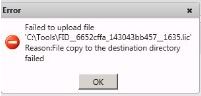
Today I received a My Citrix login to allocate my NetScaler licenses, all licenses where available, the Citrix NetScaler VPX license, the Access Gateway base license and all Universal Access licenses. So I allocated the Citrix NetScaler VPX license based on ID number and the Access Gateway and universal access licenses based on hostname and fired up the web-based console of my primary NetScaler. I got the Quick Setup wizard (although I already configured a NSIP, SNIP, Hostname, changed the nsroot password etc etc) because of.. the missing license file so I walked trough the wizard without changing the values and uploaded the .lic file I allocated from the MyCitrix page and got the following error ‘Failed to upload file’.





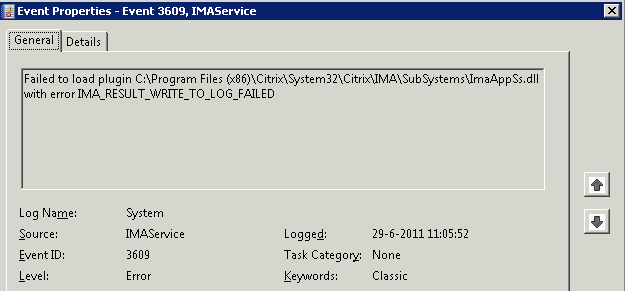
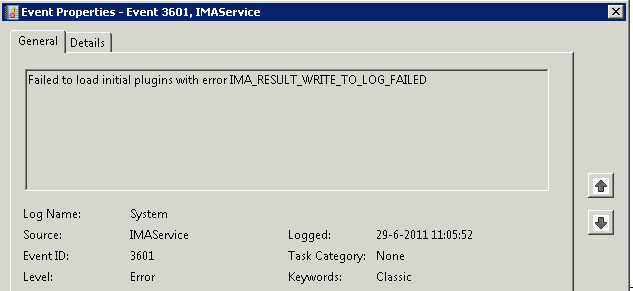
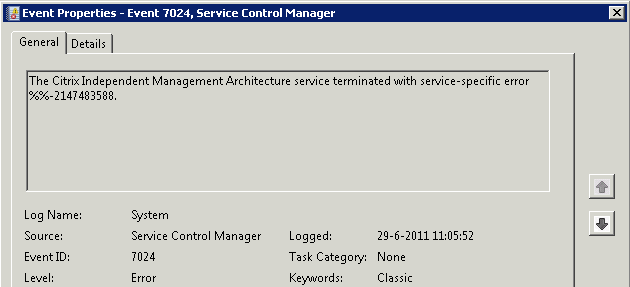

















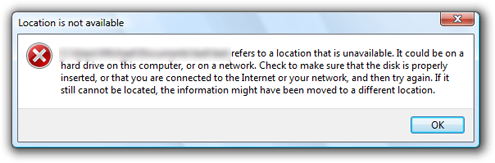
WT… Google to the rescue! But this time Google didn’t came to the rescue, apparently I was the first one to hit this problem. After some serious mind pounding I figured it out, while I was writing the backup script I got the wrong command line switch and removed some directories #facepalm. One of those directories was the ‘license’. After logging in with WinSCP I could recreate the ‘license’ folder and I copied the permissions from one of the other NetScalers I was running. After creating that new license folder I was able to upload the allocated license file to the NetScaler.

Kees Baggerman
Latest posts by Kees Baggerman (see all)
- When the Orchard Ships Production Software: AI-Augmented Development in the Real World - May 17, 2026
- Nutanix Documentation Script v5.0: Visual Reports, Brand Templates, and Seven Embedded Diagrams - May 15, 2026
- Nutanix AHV and Citrix MCS: Adding a persistent disk via Powershell – v2 - November 19, 2019
- Recovering a Protection Domain snapshot to a VM - September 13, 2019
- Checking power settings on VMs using powershell - September 11, 2019


I had a similar issue when I updating the NetScaler firmware, in my case I was uploading the bin file form my laptop which was outside of the customer domain. I tried from an internal machine and it took just a few seconds and worked like a charm.
this was exactly happens with me,. this is really helping stuff, thanks
Hi, where should the license folder be located? I downloaded the netscaler vpx for testing purposes and I am not able to upload the license file. It just says failed to upload file Reason: Not authorized to execute this command. Any idea?
Hi, I also had this issue and found the following:
http://www.markbrilman.nl/2014/02/tutorial-setup-netscaler-vpx-on-microsoft-windows-server-2012-r2-hyper-v/
This led me to the solution listed at the bottom:
Error: Network Communication error uploading the license file. During troubleshooting I noticed the NetScaler wasn’t listening on port 22/SSH. When trying to start the SSH Daemon with the /usr/sbin/sshd -f /etc/sshd_config command I got strange errors saying: Could not load host key: /nsconfig/ssh/ssh_host_rsa_key | Could not load host key: /nsconfig/ssh/ssh_host_dsa_key. I tried re-generating the files with ssh-keygen. Checked permissions. In the end I just emptied the /nsconfig/ssh directory and rebooted my VPX. Then the problem was solved and I could upload my license too.
Brillliant, this was exactly the issue I had. For people who aren’t too familiar with FreeBSD, here are the instructions I followed.
I as well was using Hyper-V, so this may be an issue with the hyper-V builds (in my case I was trying to deploy 10.5 VPX express)
On the Netscaler console, there were messages constantly saying sshd was not running.
Here is how I resolved it:
1) Launch the netscaler console using the Hyper-V console
2) login using nsroot username
3) type in ‘shell’ and hit enter
4) type in the following commands:
cd /nsroot/ssh
rm *
5) reboot the netscaler using the web console
Perfect that worked for me too – empty /nsconfig/ssh and reboot. now I can upload the license file 🙂
I was receiving similar error with the 11.0 vpx on windows 10 HyperV.
Thx