
Microsoft SCVMM, Citrix PVS and Powershell: Some quick tips
5 min read
 Another week, another reference architecture in the making… This time I’m working on a new reference architecture for Hyper-V 2016, SCVMM 2016 and XenDesktop 7.13. Obviously PVS 7.13 is in the mix too so I’ve been building out the environment but needed some PowerShell one-liners and easy scripts to get some work done and figured I could put them in a short blog for my own reference.
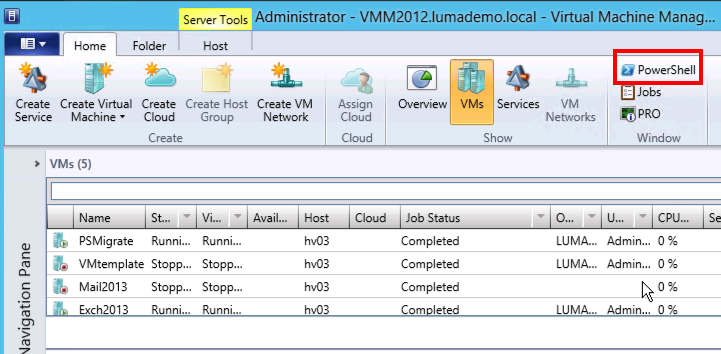
Using the usual setup within our labs required installing the SCVMM console on our DDC(s) so that’s where I started. Luckily the console installation comes with the PoSH cmdlets by itself, the console even loads the cmdlets via this shortcut:
Setting up PVS PowerShell is a little bit more complicated as it requires a DLL to be registered:
Registration of McliPSSnapIn.dll using Import-Module If the snap-in later needs to be registered in PowerShell, this can be manually done by running one of the following command in PowerShell. The path where the Citrix.PVS.SnapIn.dll is installed needs to be used.
Import-Module “path\Citrix.PVS.SnapIn.dll” |
A very useful document when working with the PVS PowerShell cmdlets is the Citrix Provisioning Services 7.13 PowerShell with Objects Programmer’s Guide.
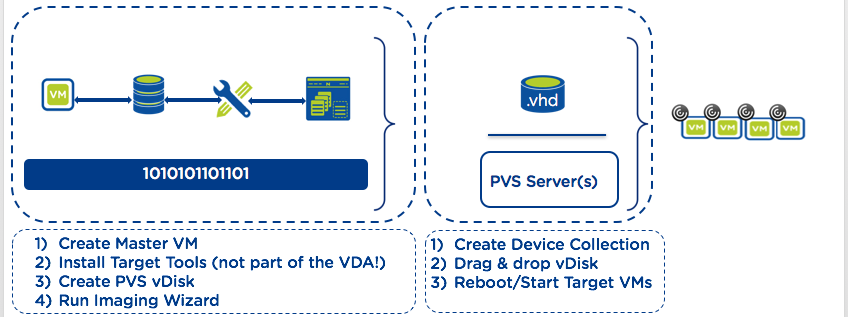
My typical PVS workflow looks as following:
After all the installations, I wanted to start deploying a Windows 10 based machine catalog using Citrix PVS. Because I used the base image for my MCS-based testing too I knew the image was ok and could be used in the PVS scenario too.
I forgot to set the VM network interface to Legacy NIC so PXE boot didn’t work the first time, after changing the synthetic network interface to a legacy network interface the PXE boot did its job and I was able to create a VHDX on my PVS server to be used as vDisk.
Running the XenDesktop Streaming Wizard from the PVS console gave me an unexpected result, it said it failed on 40 devices while other went without issues. Looking in SCVMM I only had a few desktops including ones with duplicate names.
After fixing that and getting ready for the testing I was wondering if I could do the same with PVS/SCVMM PowerShell one-liners which worked out ok although SCVMM network is different than what I’m used to which resulted in a bunch of VMs configured with no VM network and the identical mac addresses.
Here are a couple of my one-liners that helped during testing:
Starting all VMs that don’t start with “NTNX” as our CVM (Controller VMs) names typically start with “NTNX-“:
# Starting VMs

$VirtMs = Get-VM | where {$_.Name -notlike "NTNX*"}
foreach($VirtVM in $VirtMs) {
       Start-VM -VM $VirtVM
}
Stopping all VMs with a certain name that are running:
Import-Module VirtualMachineManager

# Stopping VMs

$VirtMs = Get-VM | where {($_.Name -like "GEN1PVS*") -and ($_.Status -eq "Running")}
foreach($VirtVM in $VirtMs) {
       Stop-VM -VM $VirtVM
}
Check which VMs are configured for which network (again excluding the CVMs):
# Check which VM networks are being used

Get-VM | Get-SCVirtualNetworkAdapter | where {$_.Name -notlike "NTNX*"} | Ft Name, VMNetwork
Check which VMs don’t have a VM network configured:
# Check which VMs don't have a VM network configured

Get-VM | Get-SCVirtualNetworkAdapter | where {($_.Name -notlike "NTNX*" -and $_.VMNetwork -like "")} | Ft Name, VMNetwork
Count the number of VMs that don’t have a VM network configured:
# Check which VMs don't have a VM network configured

Get-VM | Get-SCVirtualNetworkAdapter | where {($_.Name -notlike "NTNX*" -and $_.VMNetwork -like "")} | Ft Name, VMNetwork | measure
Change the VM network configuration for a VM (excluding the CVMs):
# Changing Network on the VM

$VirtMs = Get-VM | Get-SCVirtualNetworkAdapter | where {($_.Name -notlike "NTNX*" -and $_.VMNetwork -like "")}

foreach($VirtVM in $VirtMs) {
       $VM = Get-SCVirtualMachine -Name $VirtVM
       $Adapter = Get-SCVirtualNetworkAdapter -VM $VM
       Set-SCVirtualNetworkAdapter -VirtualNetworkAdapter $Adapter -LogicalNetwork "LN_RTP_164" -VLanEnabled $true -VLanID 164 -VirtualNetwork "ExternalSwitch" -IPv4AddressType Dynamic -IPv6AddressType Dynamic -NoPortClassification -RunAsynchronously
}
Listing VMs with a certain MAC address as I scripted VM creation but didn’t set the mac address being unique (lesson learned here!):
# Get VMs with a certain mac address

Get-SCVirtualMachine | Select -ExpandProperty VirtualNetworkAdapters | Where { $_.MACAddress -eq "00:1D:D8:B7:1C:61" } | Ft Name
Changing the mac addresses of VMs with a duplicate Mac address:
$VMS = Get-SCVirtualMachine | Select -ExpandProperty VirtualNetworkAdapters | Where { $_.MACAddress -eq "00:1D:D8:B7:1C:61" }
foreach ($VM in $VMS) {
        Get-SCVirtualMachine -Name $VM | Stop-SCVirtualMachine -Shutdown
        $VirtualNetworkAdapter = Get-SCVirtualNetworkAdapter -VMMServer localhost -VM "$VM"
        Set-SCVirtualNetworkAdapter -VirtualNetworkAdapter $VirtualNetworkAdapter -MACAddress "00:00:00:00:00:00" -MACAddressType Static
        Start-SCVirtualMachine -VM $VM.Name
}
Getting the mac addresses from VMs and placing them in an existing PVS device collection:
# Importing the proper modules
Import-Module -Name VirtualMachineManager
Import-Module "C:\Program Files\Citrix\Provisioning Services Console\Citrix.PVS.SnapIn.dll"
Add-PSSnapin Citrix.PVS.SnapIn

# Connecting to PVS
Set-PvsConnection -Name Citrix-PVS01

# Parameters which have to be edited to add devices to the PVS Device Collection
$collection= "GEN1"
$site= "SITE"

$VMs = Get-VM -VMMServer "SCVMM2016" | Sort-Object Name
ForEach ($VM in $VMs) {
        $vNICs = $VM | select -ExpandProperty VirtualNetworkAdapters

        # specifying MAC Address and delimiter
        $MacAddress = $vNics.macAddress
        $Delimiter = ":"

        # Rewriting the mac address from SCVMM to PVS
        $MacAddress = $MacAddress -replace "$Delimiter",""
        $MacAddress = $MacAddress.insert(2,"-")
        $MacAddress = $MacAddress.insert(5,"-")
        $MacAddress = $MacAddress.insert(8,"-")
        $MacAddress = $MacAddress.insert(11,"-")
        $MacAddress = $MacAddress.insert(14,"-")

        # Adding the new PVS devices to the given collection
        New-PvsDevice -deviceName $($vm.Name) -collectionName $Collection -siteName $Site -deviceMac $($macAddress)
}
Moving a specific range of VMs to a specific host:
# Importing the SCVMM Module
Import-Module -Name VirtualMachineManager

# Grabbing all VMs with a specific name and selecting a range of those VMs
$VMs = Get-SCVirtualMachine | where {$_.Name -like "GEN1PVS-*"}
$VMs = 451..600 | foreach { "GEN1PVS-$_" }

# migrating those VMs to a specific host
foreach ($VM in $VMS) {
Move-SCVirtualMachine $VM -VMHost RTP-TEST-53-D -RunAsynchronously
}

Kees Baggerman
Latest posts by Kees Baggerman (see all)
- Citrix MCSIO on Nutanix AHV: A Solution to a Problem That Doesn’t Exist - June 10, 2026
- The Cloud Desktop CPU Lottery: What Are You Actually Running On? - June 2, 2026
- Your Cloud Desktop Is Running on Yesterday’s Silicon - May 21, 2026
- When the Orchard Ships Production Software: AI-Augmented Development in the Real World - May 17, 2026
- Nutanix Documentation Script v5.0: Visual Reports, Brand Templates, and Seven Embedded Diagrams - May 15, 2026

“Running the XenDesktop Streaming Wizard from the PVS console gave me an unexpected result, it said it failed on 40 devices while other went without issues. Looking in SCVMM I only had a few desktops including ones with duplicate names…After fixing that and getting ready for the testing”
Can you give insight into what you fixed? Had a couple of people say that PVS+HyperV can be troublesome – sort of feels like the PVS Support team / testing isn’t as rigorous as it could be.
In this case I think it was 3 seperate things:
1) Windows Update on the PVS Server
2) Windows Update on the SCVMM Server side
3) Disabling a scheduled job that jacked up the VM networking piece